How to Connect Claude to WordPress in 2026 (And the 5 Plugins That Failed First)
I got mesmerized, early on, by the website builders promising a fully custom, perfect site built by AI. So I started with Wix. I actually like the Wix builder and what it can do, it just was not the right fit for me. What it generated never matched my aesthetic, and the moment I went in to edit individual elements I got frustrated fast. For context: I have built dozens of sites for companies, and Major Tom is a web development shop, but I am a digital marketer first, not a designer, and I work alongside great designers. Bootstrapping my own thing, I talked myself into believing a builder could magically hand me exactly what I wanted. It could not. I ran that Wix site for a couple of months, tried again two or three times, then gave up and switched hosts entirely.
Round two was WordPress with an AI site builder: Astra and Spectra. Same story. The templates felt clunky, things broke constantly, and it never did what it promised. The one bright spot was my host’s AI assistant, Kodee, which was genuinely useful. I tried ZipWP to generate a site and that did not land either. A few other plugins came and went. What finally stuck was boring by comparison: the Kadence theme, and then connecting the site directly to Claude through an MCP connector. That last part is what this post is about, because connecting Claude to WordPress took most of a day and five failed attempts before one setup worked. Here is the complete picture, including what breaks, what works, and what WordPress 7.0 actually changed. This post is part of Rivetline’s complete WordPress AI resource library.
Why You’d Want Claude Connected to WordPress
Once Claude has direct access to your WordPress site, you can edit content, create posts, update pages, pull live data, and run workflows without leaving a chat window. No more copy-paste between Claude and WordPress. No more switching tabs to check what a page actually says.
Claude reads your site, understands it in context, and edits it while you just describe what you want. For content-heavy sites, this is a meaningful workflow shift. For the full picture of what this enables on a daily basis, see how we manage this site with AI.
The 5 Plugins That Failed First
- A generic REST API enabler. Authentication kept breaking, and the permissions model wasn’t built for the read-write operations we needed.
- A ChatGPT-specific integration. Built for OpenAI, not Anthropic. No native Claude support, and routing Claude through an OpenAI-compatible interface produced unreliable results.
- A no-code automation bridge via Make. Worked for simple tasks but added latency, broke on complex operations, and required maintaining a separate automation layer we didn’t want long term.
- A custom webhook approach. Worked exactly once before authentication issues in our server environment shut it down.
- A WordPress AI plugin with “Claude Support”. It had a text field where you could paste an API key and hope. Last updated 14 months before we tried it.
What Finally Worked: MCP
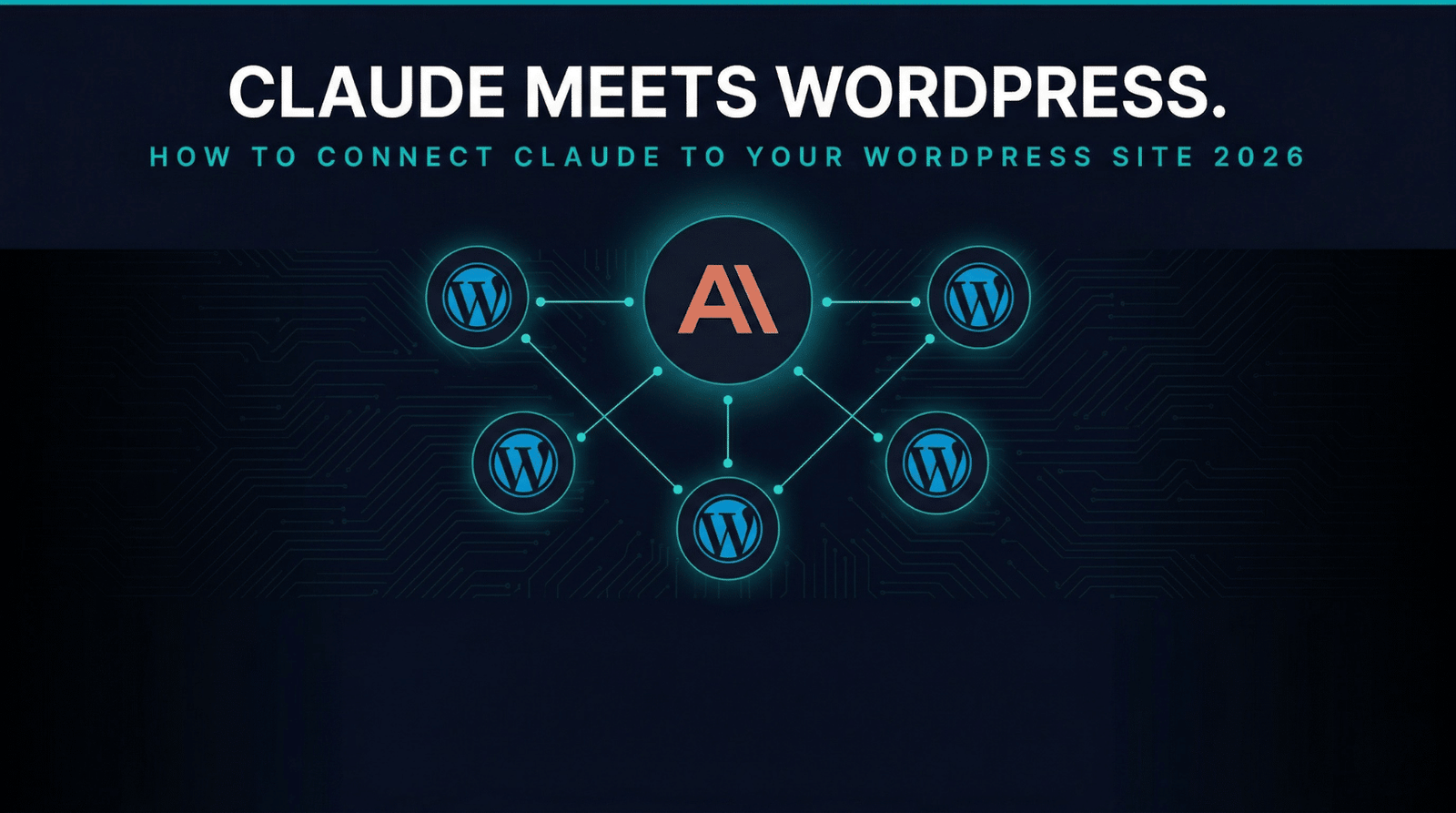
The solution was the Model Context Protocol (MCP), Anthropic’s native tool-integration standard built directly into Claude. MCP allows Claude to connect to servers that expose specific tools and data. A WordPress MCP server plugin creates a secure, structured connection between Claude and the site’s content, posts, pages, and metadata.
Once configured, Claude can read any published page or post, create and update drafts, set featured images, update metadata, and manage custom fields, all within the permissions you define. The connection is persistent within a conversation session, so Claude maintains context across multiple edits without losing state. For the broader plugin stack that pairs with this connection, see the best AI plugins for WordPress guide.
How to Set It Up
Step 1
Install a WordPress MCP Server Plugin
You need a plugin that creates an MCP-compatible endpoint on your WordPress site, exposing your site’s tools to Claude in a structured, secure format.
Step 2
Configure Authentication
The plugin will generate an access token. You’ll use this when connecting the MCP server in Claude’s settings under Integrations.
Steps 3 to 5
Add MCP Server in Claude, Verify Connection, Test with Low-Risk Edits
In Claude.ai Settings, navigate to Integrations and add a custom MCP server using the URL and token from Step 2. Start a new conversation and ask Claude to list your recent posts. If it is working, Claude pulls live data. Before touching live pages, create a draft test post and ask Claude to update it. Confirm the edit appears in your WordPress admin before expanding to published content. Rivetline runs on Claude as its primary operating system. If you want to set up a similar workflow, get in touch.
Full Comparison: Every Option Available Right Now
| Method | Setup | Reliability | Read/Write | Recommended |
|---|---|---|---|---|
| MCP Server Plugin | Medium | High | Yes / Yes | Yes |
| REST API + OAuth | High | Medium | Yes / Yes | Developers only |
| Make/Zapier Bridge | Medium | Medium | Limited | No |
| Custom Webhook | High | Low | Custom | No |
| Abandoned AI plugins | Easy | Very Low | Unreliable | No |
How I Actually Work With It Now
I talk to the site, I don’t type
I almost never type prompts. I use Wispr Flow and dictate, usually at 120 to 130 words per minute, more or less a stream of consciousness straight out of my head. Wispr cleans up the grammar, trims the ums and filler, and fixes most of the spelling before any of it reaches Claude, so the prompt that lands is far tidier than how it left my mouth. I describe the change I want, and Claude makes it on the site through the MCP connection. Every so often I paste in a CSS snippet or reauthenticate a connection, and the rest is just talking.
Why I build inside a platform, not from scratch
I do not share the belief, common among some of my friends, that you should hand-code a site from nothing and call it done. I build inside WordPress on purpose: I want plugins, I want the security that comes with a maintained platform, and I want an interface a third party can step into without a tutorial. The same logic is why I would rather run on a real CRM than have an AI build me a bespoke one full of holes I would spend my life patching. My preference is AI plus established tools plus a human operator, not AI in place of the tools.
Frequently Asked Questions
What is MCP and how does it connect Claude to WordPress?
MCP (Model Context Protocol) is Anthropic’s native tool-integration standard. A WordPress MCP Server plugin creates a secure endpoint on your site that exposes specific tools, such as reading posts, creating drafts, updating metadata, and setting featured images, to Claude in a structured format. Claude connects via Claude.ai Settings under Integrations. For the full AI plugin stack to pair with this connection, see the best AI plugins for WordPress guide.
Is the WordPress MCP connection safe to use on a live site?
Yes, with proper configuration. The MCP server plugin uses token-based authentication and you define exactly what permissions Claude has. Start with read-only access, test on drafts before touching published content, and scope permissions narrowly. Claude cannot access anything beyond what the plugin exposes.
Does WordPress 7.0 change how this works?
Yes. WordPress 7.0 was released on May 20, 2026, after slipping from its original April 9 date, and it brought a native, provider-agnostic AI layer into core: the WP AI Client, an AI Connectors screen, and the Abilities API that standardizes what AI tools can do inside your install. The real-time collaboration feature originally promised for 7.0 was pulled before release. The practical effect is that AI integration is becoming part of WordPress itself, though a direct Claude connection like this one still runs through an MCP plugin such as AIWU today. The setup described above still works, and the same workflow carries over.
Why didn’t the REST API approach work?
WordPress’s REST API requires OAuth authentication that is cumbersome to set up correctly for AI tool use. The permissions model is designed for developer integrations, not conversational AI sessions. Authentication kept breaking on re-authentication, and the API structure is not optimized for the back-and-forth context Claude needs across multiple edits.
What can Claude actually do once connected to WordPress?
Read any published page or post, create and update drafts, set featured images, update post metadata and custom fields, manage categories and tags, and retrieve live site content for context during editing sessions. The connection is persistent within a conversation, so Claude maintains full site context across multiple edits without losing state. For more on how this translates to a real daily workflow, see how we manage this site with AI.
The Bottom Line
Connecting Claude to WordPress is worth the setup time. Once it’s working, the workflow shift is real, especially for sites with frequent content updates, multiple pages, or complex metadata management. The five approaches that failed weren’t bad ideas. They were built for different problems. MCP is the right architecture for this use case because it was designed specifically for giving AI models structured, controllable access to external tools.
For the full picture of what to do once this connection is in place, which plugins to pair with it, how to structure content for AI visibility, and how all six optimization tools work together as a system, see the WordPress AI optimization guide, the WordPress AI Optimization Stack guide, and the WordPress AI Visibility setup. All five resources in this series are collected in the complete WordPress AI guide.
Rivetline runs on Claude as its primary operating system. We build AI Visibility Systems on the same setup, the Foundation tier of our model. See how the WordPress AI Visibility setup works or run a free scan of your site.

Chris Breikss is the founder of Rivetline and a WordPress and AI search optimization specialist with over 27 years of experience in SEO and digital strategy. He helps businesses improve visibility in platforms like ChatGPT and Perplexity by structuring websites for clarity, authority, and performance, while also building systems for speed-to-lead optimization, CRM integration, and AI-powered SDR automation.