How to Connect Claude to WordPress in 2026 (And the 5 Plugins That Failed First)
We’ve connected a lot of tools to a lot of websites. Most of the time it’s a plugin, an API key, and 20 minutes.
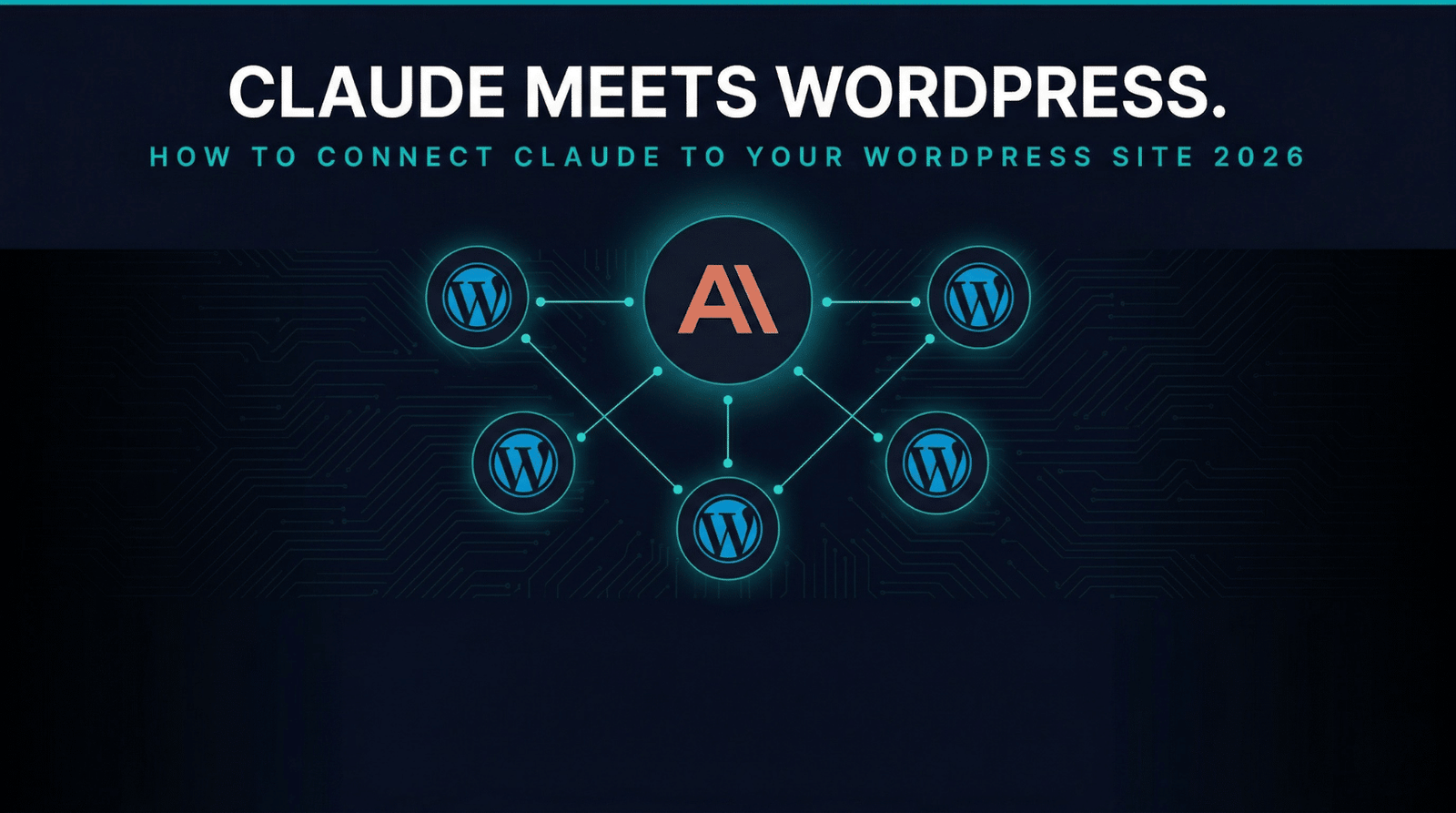
Connecting Claude directly to WordPress took most of a day, five failed attempts, and one very specific setup that finally worked. Here’s the complete picture — including what breaks, what works, and what changes on April 9 when WordPress 7.0 ships. This post is part of Rivetline’s complete WordPress AI resource library.
Why You’d Want Claude Connected to WordPress
Once Claude has direct access to your WordPress site, you can edit content, create posts, update pages, pull live data, and run workflows without leaving a chat window. No more copy-paste between Claude and WordPress. No more switching tabs to check what a page actually says.
Claude reads your site, understands it in context, and edits it — while you just describe what you want. For content-heavy sites, this is a meaningful workflow shift. For the full picture of what this enables on a daily basis, see how we manage this site with AI.
The 5 Plugins That Failed First
- A generic REST API enabler. Authentication kept breaking, and the permissions model wasn’t built for the read-write operations we needed.
- A ChatGPT-specific integration. Built for OpenAI, not Anthropic. No native Claude support, and routing Claude through an OpenAI-compatible interface produced unreliable results.
- A no-code automation bridge via Make. Worked for simple tasks but added latency, broke on complex operations, and required maintaining a separate automation layer we didn’t want long term.
- A custom webhook approach. Worked exactly once before authentication issues in our server environment shut it down.
- A WordPress AI plugin with “Claude Support”. It had a text field where you could paste an API key and hope. Last updated 14 months before we tried it.
What Finally Worked: MCP
The solution was the Model Context Protocol (MCP) — Anthropic’s native tool-integration standard built directly into Claude. MCP allows Claude to connect to servers that expose specific tools and data. A WordPress MCP server plugin creates a secure, structured connection between Claude and the site’s content, posts, pages, and metadata.
Once configured, Claude can read any published page or post, create and update drafts, set featured images, update metadata, and manage custom fields — all within the permissions you define. The connection is persistent within a conversation session, so Claude maintains context across multiple edits without losing state. For the broader plugin stack that pairs with this connection, see the best AI plugins for WordPress guide.
How to Set It Up
Step 1
Install a WordPress MCP Server Plugin
You need a plugin that creates an MCP-compatible endpoint on your WordPress site, exposing your site’s tools to Claude in a structured, secure format.
Step 2
Configure Authentication
The plugin will generate an access token. You’ll use this when connecting the MCP server in Claude’s settings under Integrations.
Steps 3 — 5
Add MCP Server in Claude, Verify Connection, Test with Low-Risk Edits
In Claude.ai Settings, navigate to Integrations and add a custom MCP server using the URL and token from Step 2. Start a new conversation and ask Claude to list your recent posts — if working, Claude pulls live data. Before touching live pages, create a draft test post and ask Claude to update it. Confirm the edit appears in your WordPress admin before expanding to published content. Rivetline runs on Claude as its primary operating system. If you want to set up a similar workflow, get in touch.
Full Comparison: Every Option Available Right Now
| Method | Setup | Reliability | Read/Write | Recommended |
|---|---|---|---|---|
| MCP Server Plugin | Medium | High | Yes / Yes | Yes |
| REST API + OAuth | High | Medium | Yes / Yes | Developers only |
| Make/Zapier Bridge | Medium | Medium | Limited | No |
| Custom Webhook | High | Low | Custom | No |
| Abandoned AI plugins | Easy | Very Low | Unreliable | No |
Frequently Asked Questions
What is MCP and how does it connect Claude to WordPress?
MCP (Model Context Protocol) is Anthropic’s native tool-integration standard. A WordPress MCP Server plugin creates a secure endpoint on your site that exposes specific tools — read posts, create drafts, update metadata, set featured images — to Claude in a structured format. Claude connects via Claude.ai Settings under Integrations. For the full AI plugin stack to pair with this connection, see the best AI plugins for WordPress guide.
Is the WordPress MCP connection safe to use on a live site?
Yes, with proper configuration. The MCP server plugin uses token-based authentication and you define exactly what permissions Claude has. Start with read-only access, test on drafts before touching published content, and scope permissions narrowly. Claude cannot access anything beyond what the plugin exposes.
Does WordPress 7.0 change how this works?
Yes, significantly. WordPress 7.0 (April 9, 2026) adds native MCP support into core — no plugin required. Authentication will use WordPress’s native application passwords system, and MCP tools will be exposed by default with configurable permissions. The setup process described above still works today, and the same workflow carries over to the native implementation.
Why didn’t the REST API approach work?
WordPress’s REST API requires OAuth authentication that is cumbersome to set up correctly for AI tool use. The permissions model is designed for developer integrations, not conversational AI sessions. Authentication kept breaking on re-authentication, and the API structure is not optimized for the back-and-forth context Claude needs across multiple edits.
What can Claude actually do once connected to WordPress?
Read any published page or post, create and update drafts, set featured images, update post metadata and custom fields, manage categories and tags, and retrieve live site content for context during editing sessions. The connection is persistent within a conversation, so Claude maintains full site context across multiple edits without losing state. For more on how this translates to a real daily workflow, see how we manage this site with AI.
The Bottom Line
Connecting Claude to WordPress is worth the setup time. Once it’s working, the workflow shift is real — especially for sites with frequent content updates, multiple pages, or complex metadata management. The five approaches that failed weren’t bad ideas — they were built for different problems. MCP is the right architecture for this use case because it was designed specifically for giving AI models structured, controllable access to external tools.
For the full picture of what to do once this connection is in place — which plugins to pair with it, how to structure content for AI visibility, and how all six optimization tools work together as a system — see the WordPress AI optimization guide, the WordPress AI Optimization Stack guide, and the WordPress AI Visibility setup. All five resources in this series are collected in the complete WordPress AI guide.
Rivetline runs on Claude as its primary operating system. See how the WordPress AI Visibility setup works or run a free scan of your site.

Chris Breikss is the founder of Rivetline and a WordPress and AI search optimization specialist with over 27 years of experience in SEO and digital strategy. He helps businesses improve visibility in platforms like ChatGPT and Perplexity by structuring websites for clarity, authority, and performance, while also building systems for speed-to-lead optimization, CRM integration, and AI-powered SDR automation.