GA4 Conversion Tracking: The Practical Setup Playbook
Mark the single highest-value GA4 event as a key event, link the property to Google Ads, and validate it in DebugView. That gives you usable conversion data for bidding. GA4 conversion tracking works differently from the old Universal Analytics goal system: instead of building a “goal” from URL rules and thresholds, you flag an existing event as a key event, then decide whether to push it into Google Ads as a conversion action.
Most accounts get this wrong in one of two ways. Either nobody marks anything as a key event and the ad account is bidding blind, or everything gets marked as a key event and Smart Bidding drowns in noise chasing newsletter sign-ups with the same enthusiasm as actual purchases.
Here’s the immediate priority list:
- Pick one event that reflects real business value (a purchase, a qualified lead form, a booked call).
- Confirm your tag or SDK is actually firing that event with the right parameters.
- Mark it as a key event, link GA4 to Google Ads, and check DebugView before you trust a single number.
A limited number of key events from Google Analytics 4 can be set for conversion tracking per standard property before you hit the ceiling, which is exactly why picking the right one first matters more than most setup guides admit.
Key Takeaways
Reliable GA4 conversion tracking depends on marking the right event as a key event, verifying it in DebugView before trusting it, and auditing settings on a fixed schedule rather than assuming setup was a one-time job.
| Point | Details |
|---|---|
| Pick one high-value event | Mark the event that reflects real business value, not the easiest one to implement. |
| Verify before you trust | Check DebugView and Realtime before treating any conversion number as accurate. |
| Respect the key event ceiling | Standard GA4 properties allow a capped number of key events, so prune stale ones regularly. |
| Promote conversions carefully | Imported conversions default to secondary status; confirm accuracy before switching to primary. |
| Governance beats one-time setup | Rivetline treats naming conventions, parameter schemas, and monthly audits as the real safeguard against silent tracking drift. |
Table of Contents
- How Do You Set Up GA4 Conversion Tracking?
- Why GA4 Events Aren’t the Same as Conversions
- How Do You Link GA4 to Google Ads?
- How Do You Verify GA4 Conversions Are Working?
- What Attribution and Counting Settings Actually Change Your Numbers?
- What Should Be on Every GA4 Conversion Checklist?
- Why Most GA4 Setups Fail Quietly, Not Loudly
- Get Conversion Tracking Built by People Who Actually Watch the Dashboards
- Sources
- FAQ
How Do You Set Up GA4 Conversion Tracking?
Setup breaks into five steps, and skipping the permissions check is the most common reason people spend an hour debugging a “broken” conversion that was never going to fire.
- Confirm access first. You need Marketer or Editor role on the GA4 property (Admin permission recommended for linking), and the Google Ads account needs to be either linked already or linkable by someone with edit access on both sides.
- Audit what’s already collecting. GA4 auto-collects events like
session_startandfirst_visitwith zero configuration. Enhanced measurement adds scroll depth, outbound clicks, site search, and video engagement without any code. Recommended events (likepurchaseorgenerate_lead) need you to implement them with the correct naming, and custom events cover anything specific to your business that doesn’t fit Google’s templates. - Add parameters if you need revenue data. A
purchaseevent without avalueparameter tells you something happened, not what it was worth. If you’re reporting on revenue, that value parameter needs to be present on the event, and if you want it visible in standard reports, register it as a custom metric in Admin. - Mark the event as a key event. In GA4, go to Admin > Events, find the event, and toggle “Mark as key event.” Purchase is flagged as a key event automatically, which trips people up because they assume every important event gets that treatment. It doesn’t.
- Create the conversion in Google Ads. Once the key event exists in GA4, go to Google Ads > Goals > Conversions > Conversion management, and import it as a new conversion action, or let GA4 push it over depending on which side you’re managing it from.
On implementation: if you’re using gtag.js directly, events are sent with the event name and a parameter object, and the developer documentation lays out the exact syntax for custom parameters and recommended event names. If you’re using Google Tag Manager, the pattern is a GA4 Event tag pointed at your configuration tag, triggered off a dataLayer push, with parameters mapped as key-value fields in the tag itself rather than hardcoded. GTM is the better call for most teams because it means marketing doesn’t need a developer every time an event needs a tweak, but someone still has to own the dataLayer schema so events don’t drift into five different naming conventions across five different campaigns.
The part nobody tells you: none of this matters if the event fires inconsistently across devices or browsers. Test it before you build campaigns around it.

Why GA4 Events Aren’t the Same as Conversions
Universal Analytics measured goals as hits against session rules. GA4 measures everything as an event, and that’s not a cosmetic change. It’s a completely different data model, which is why so many people migrating from UA kept trying to rebuild goals instead of rethinking what actually counts as valuable.
A key event is GA4’s mechanism for flagging which events matter for business reporting. Every event you send to GA4 exists in your data regardless of whether it’s a key event. Marking it as a key event just tells GA4 (and, by extension, Google Ads) that this one deserves to be counted toward conversion totals and used for bidding signals.
That flexibility comes with a hard limit: standard GA4 properties have a capped number of key events for conversion tracking, with GA4 360 properties getting more headroom. Hit the ceiling and you’ll need to prune. This is where a lot of accounts accumulate junk: someone marks “scroll_75” as a key event during a campaign push in 2024, forgets about it, and two years later it’s still eating a slot that could go toward something that actually predicts revenue.
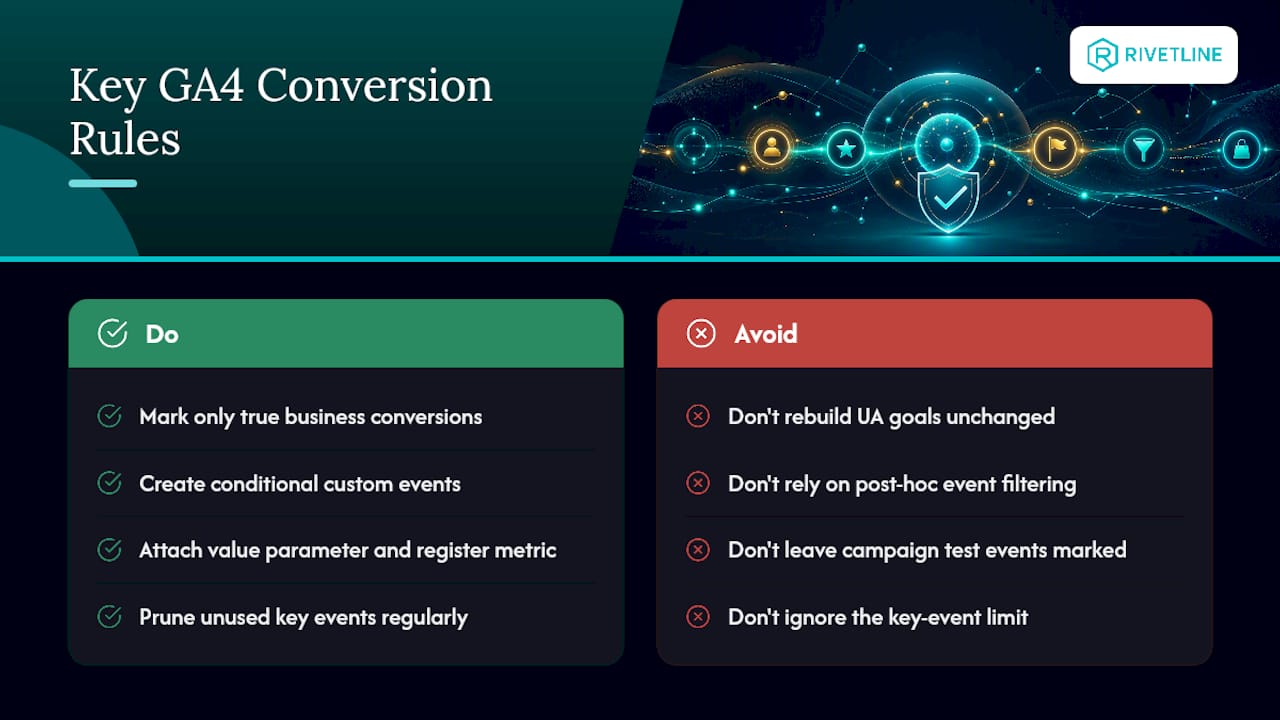
If you need conditional logic, like a purchase over a certain dollar threshold, you build a new custom event that only fires under that condition, rather than trying to filter an existing key event after the fact. And if you want the conversion data to carry real financial weight instead of just a count, attach a value parameter to the event and register it as a custom metric. Without that step, your conversion report tells you volume, not worth.
How Do You Link GA4 to Google Ads?
Linking is where most of the “why don’t my numbers match” tickets originate, and it’s almost always because someone assumed settings carry over cleanly when they don’t.
- Check permissions on both platforms. You need Editor or Admin access in GA4 and Admin access in the Google Ads account you’re linking.
- Create the link from GA4 Admin > Product links > Google Ads links, or start it from the Google Ads side under Tools > Linked accounts. Either direction works; the account with admin rights on both should drive it.
- Choose which sub-properties and views get shared, and decide whether Ads gets access to Analytics data at the account level or a narrower scope.
- Confirm which settings actually inherit. Conversion actions created from a GA4 key event pull in the definition from GA4, but conversion windows and counting methods behave differently depending on where you set them; Ads doesn’t just mirror GA4’s settings silently.
- Check the default conversion status. Google Ads marks imports from Analytics as secondary conversion actions by default, specifically to stop them from double-counting against existing bidding conversions. That’s a deliberate safety net, not a bug.
- Set channel eligibility. Decide whether the conversion counts for Paid channels only or Paid & Organic, because this changes what shows up in cross-channel attribution reports and can quietly inflate or deflate organic’s apparent contribution.
Pro Tip: Don’t promote an imported conversion from secondary to primary the same day you set it up. Give it a few days of data, cross-check the numbers against GA4’s own conversion report, and only flip the switch once you trust what you’re looking at. Smart Bidding will start optimizing toward it immediately once it’s primary, and there’s no graceful way to undo a week of bidding against garbage data.
The secondary/primary distinction exists because Analytics conversions are treated as a safety net rather than an assumed source of truth, and that caution is earned. Plenty of accounts have imported a broken event, promoted it to primary out of impatience, and spent a month optimizing toward noise.
How Do You Verify GA4 Conversions Are Working?
Trusting a conversion number without checking it first is how ad budgets quietly evaporate. Verification isn’t optional, and it isn’t hard, it’s just skipped constantly because it feels like busywork until the day it saves your quarter.
- Open DebugView first. It shows events as they arrive in near real time, including every parameter attached, which is the fastest way to confirm the event name and payload actually match what you configured. Google’s own debug workflow is built around exactly this check.
- Use Realtime for a broader pulse check once DebugView confirms the individual event is clean; Realtime tells you the event is showing up across real traffic, not just your test session.
- Run GTM’s preview mode alongside a tag inspector like Tag Assistant to confirm the tag fires on the right trigger, not adjacent to it or twice.
- Cross-check the key event against the Conversions list in GA4 and Google Ads to confirm the counts roughly line up, allowing for legitimate model differences.
- Check Admin’s change history when numbers shift unexpectedly; someone editing a key event definition without telling anyone is a more common cause of “broken tracking” than an actual technical failure.
Discrepancies between GA4 and Google Ads numbers almost always trace back to one of a handful of causes: different attribution models between the two platforms, mismatched conversion windows, timezone settings that don’t match between the ad account and the property, duplicate imports from overlapping tags, or timing gaps between when a client-side event fires and when a server-side hit gets logged.
Pro Tip: If GA4 and Google Ads disagree on conversion counts, check the attribution model before you assume the tag is broken. GA4 typically reports on a data-driven or last-click basis depending on configuration, while Google Ads applies its own model to imported conversions, and that mismatch alone can explain a 10 to 20 percent gap with nothing actually wrong.
What Attribution and Counting Settings Actually Change Your Numbers?
Attribution settings live in GA4 Admin under Attribution settings, and they change which touchpoint gets credit before a single conversion ever gets counted. Lookback windows determine how far back GA4 will search for a qualifying touchpoint, and shortening or lengthening that window can shift which channel looks like it’s driving results without a single thing changing about your actual traffic.
Counting method is the setting people ignore until it costs them. “Once per session” makes sense for lead generation, where a single form fill is the whole transaction. “Every time” makes sense for ecommerce, where someone genuinely can and should be counted for multiple separate purchases. Set an ecommerce store to “once per session” and you’ll systematically undercount revenue-driving behavior every time a customer buys twice in one visit.
Smart Bidding treats imported conversions as training data for its bidding algorithm, which is precisely why verifying accuracy before promoting to primary matters more than it sounds like it should. Feed the algorithm a broken signal and it will optimize toward that broken signal with total confidence, because it has no way of knowing the data is wrong.
A few rules worth building into your process:
- Standardize event naming before launch, not after three campaigns have already used three different conventions for the same action.
- Treat parameter schemas as fixed contracts across teams, so
valuedoesn’t mean dollars in one event and units in another. - Run a monthly audit against the key event list, since most accounts drift over time as campaigns end but their tracking scaffolding quietly stays live, eating a key event slot on something nobody has looked at in months.
What Should Be on Every GA4 Conversion Checklist?
Setup is the easy part. Keeping it accurate for the next two years is where most accounts fall apart, usually because nobody owns it after launch.
- Pre-launch: confirm Marketer/Admin access on both platforms, verify the tag or SDK is firing correctly in a staging environment, and lock a naming convention and parameter schema before a single event goes live.
- Validation: pass DebugView cleanly, run a GTM preview session, walk through a sample transaction end to end, and confirm the Ads import shows the expected count before you even think about promoting it to primary.
- Governance: review Admin’s change history on a set cadence, run a monthly key event audit, validate the numbers feeding your Looker Studio dashboard against GA4’s own reports, and keep a documented rollback step for any conversion you promote to primary in case the data goes sideways.
Pro Tip: If your dashboard and your GA4 property disagree, the dashboard is almost never the problem. Check the source connection and the date range logic first, because a silent schema change upstream will break a dashboard long before anyone notices in the raw reports.
Why Most GA4 Setups Fail Quietly, Not Loudly
Nobody’s conversion tracking breaks with an alarm bell. It breaks with a slow, undramatic drift where a key event stops matching reality and nobody notices for three months because the dashboard still shows numbers, they just aren’t the right numbers.
The conventional advice treats GA4 setup as a one-time technical task: link the account, mark the event, done. That’s backwards. The setup is the cheap part. The expensive part is the governance nobody budgets for, the monthly check that catches a parameter someone changed during a redesign, the audit that notices an old campaign’s tracking pixel is still eating a key event slot for no reason.
If you take one thing from this: verify before you promote to primary, and treat every key event as something that needs re-justifying every few months, not something you set once and trust forever. Businesses that treat this as a governance problem catch the discrepancies before they cost real ad spend. Businesses that treat it as a checkbox find out the hard way, usually when a quarter’s Smart Bidding results don’t match what actually happened in the bank account.
Get Conversion Tracking Built by People Who Actually Watch the Dashboards
Rivetline sets up GA4 conversion tracking as part of the same engagement where we manage the ad spend depending on it, which means there’s no gap between the team building your measurement and the team optimizing against it. That matters more than it sounds: agencies that only run ads and treat GA4 as your problem have no incentive to catch a broken conversion event, because it’s not their dashboard that looks wrong. Rivetline connects your Google Business Profile straight into GA4 and builds live Looker Studio dashboards you can check any time, not a static report that’s three weeks stale by the time you read it. If your lead form is marked as a key event but the value data is missing, or your Google Ads account is bidding against a conversion nobody’s verified in months, get your GA4 setup audited before you spend another dollar on campaigns built on numbers you haven’t checked.
Sources
- GA4 Conversion - Analytics Help
- Create Google Ads conversions based on Google Analytics key events - Analytics Help
- GA4 events - Developer documentation
- Conversion actions and settings - Google Ads Help
FAQ
How Do I Track Conversion Rate in Google Analytics?
Conversion rate in GA4 is calculated automatically once you’ve marked an event as a key event; you’ll find it in the Advertising section’s conversion reports, dividing key event count by total sessions or users depending on the report view.
How Do I Set Up Conversion Tracking in Google Analytics?
Identify a high-value event, confirm it’s firing correctly with the right parameters, mark it as a key event in Admin > Events, then create or import a corresponding conversion action in Google Ads.
What Is the Difference Between GA4 and Google Ads Conversion Tracking?
GA4 tracks events and lets you flag key events based on your own site or app data, while Google Ads conversion tracking imports those key events and applies its own attribution model, conversion windows, and counting methods for bidding purposes.
How Do I Check Conversions in GA4?
Open the Advertising section and look at the Conversions or Conversion performance report, which shows imported and native key events together; this report sits separately from GA4’s standard engagement reports.
How Many Key Events Can a GA4 Property Have?
Standard GA4 properties support up to about 30 key events, while GA4 360 properties have a higher limit, which is why pruning unused events matters as campaigns evolve.