Google Ads Budget Pacing: The 2026 Rules That Control Spend
Google Ads budget pacing is the system that spreads your campaign spend across a billing cycle so you hit monthly targets without blowing through them in the first ten days. It runs on three rules you need memorized, not bookmarked. First, Google can spend up to twice your average daily budget on any single day. Second, your monthly cap equals approximately 30 times your average daily budget, reflecting the typical number of days per month. Third, ad scheduling now interacts directly with that monthly math, and a 2026 change to how scheduled campaigns pace means the old “set it and forget it” habit can quietly inflate your bill.
- 2× overdelivery: Google can spend double your daily budget on a high-demand day.
- 30.4× monthly cap: Your real ceiling is calculated monthly, not daily.
- Scheduling interaction: As of 2026, Google pushes limited-schedule campaigns to hit that full 30.4× cap within their scheduled hours, not across the full week.
At Rivetline, we treat pacing as a live operational metric, not a “check it at the end of the month” afterthought, and that mindset is what the rest of this guide is built around.
Key Takeaways
Google Ads budget pacing works because Google spends up to 2× your daily budget on demand spikes while capping the month at 30.4× your daily budget, and the 2026 scheduling change now applies that full cap within scheduled hours only.
| Point | Details |
|---|---|
| Know the three core rules | 2× daily overdelivery, 30.4× monthly cap, and scheduling now paces to that full cap within active hours. |
| Check pacing status weekly | Use the account Insights page to catch “Limited by budget” or drift before it becomes an invoice surprise. |
| Recalculate after every schedule edit | Divide monthly target by active scheduled days, not calendar days, to avoid the 2026 overspend trap. |
| Watch Lost Impression Share (budget) | Above 30% signals a genuine budget constraint, not algorithmic throttling. |
| Get expert monitoring in place | Rivetline pairs Google Ads management with live Looker Studio dashboards so pacing drift shows up in real time, not on the invoice. |
Table of Contents
- Why Google Ads Budget Pacing Determines Your ROI
- Where to Find Budget Pacing Insights in Google Ads
- How Google Calculates Overdelivery and Monthly Caps
- What “Limited by Budget,” “Budget Remaining,” and “On Track” Actually Mean
- Diagnosing Overspend and Underspend: A Troubleshooting Sequence
- How to Adjust Budgets and Schedules to Control Pacing
- Core Pacing Formulas You’ll Use Every Week
- Building a Dashboard That Catches Pacing Drift Early
- What the 2026 Pacing Changes Mean for Your Accounts
- Why We Treat Pacing as a Weekly Discipline, Not a Monthly Fire Drill
- Get Pacing Handled Without Babysitting the Dashboard Yourself
- Primary Sources and Further Reading
- Sources
Why Google Ads Budget Pacing Determines Your ROI
Pacing isn’t a housekeeping detail. It’s the mechanism that decides whether your campaign shows up when buyers are actually searching or gets throttled into invisibility on your best sales days. Underpacing, where a campaign spends well below its daily budget, usually means Google is capping impressions to stay inside a tight budget, and that shows up directly as Lost Impression Share (budget) in your reports. Every point of lost impression share is a competitor’s ad in the slot that should’ve been yours.
Overpacing carries the opposite risk. When you raise a daily budget mid-cycle without recalculating the monthly math, Smart Bidding strategies like Target CPA or Target ROAS can chase volume aggressively before the algorithm has re-stabilized, and your CPA spikes before the system settles into a new baseline. That volatility is the real cost of ad-hoc budget changes; it’s not the change itself, it’s the seven to ten days of noisy learning that follows.
The metrics that move first are conversions, impression share, average CPC, and CPA. Watch all four together, not one in isolation, because a rising CPC with flat conversions usually means a pacing problem before it means a bidding problem.
Pro Tip: When budgets are tight but your conversion rate has been stable, raise a shared budget or account-level cap before you touch individual campaign daily budgets. It spreads risk across campaigns instead of concentrating it in one.
Where to Find Budget Pacing Insights in Google Ads
Google surfaces pacing data in one specific place, and most advertisers never open it. Here’s the path:
- Go to the account-level Insights page in Google Ads and look for the Budget pacing panel, which shows a forecast-versus-actual spend curve alongside a plain-language pacing status.
- Cross-reference this with the standard Budget report, which breaks pacing data down by campaign rather than account.
- If you’re running shared budgets, check the shared budget view separately. Individual campaign reports won’t show you how the pool is being split.
- For stakeholder reporting, export the pacing panel as a scheduled email or pipe it into a dashboard so nobody has to log in and click around to see it.
A useful mental caption for this panel: “Insights > Budget pacing: status indicator, forecast curve, actual spend curve.” That’s the whole story in one screen, and it updates daily, which makes it far more useful than a monthly billing statement you only see after the damage is done.
How Google Calculates Overdelivery and Monthly Caps
The math behind pacing is simple once you see it laid out, and understanding it is what separates advertisers who react to spend surprises from those who predict them.
- Average daily budget sets the monthly ceiling. Google multiplies your daily budget by 30.4, an approximation of average days per month, to establish your monthly spending limit. A $50 daily budget caps out around $1,520 per month, not $1,500.
- Daily spend can double. On any given day, Google may spend up to 2× your average daily budget to capture demand, then pulls back on slower days so the monthly average still lands near your target.
- Ad scheduling now factors into that same monthly math. Starting in 2026, Google changed how it paces campaigns restricted to specific days or hours. Instead of pacing evenly across the calendar week, the system now attempts to hit the full 30.4× monthly cap within your scheduled hours alone, according to reporting from Search Engine Land.
That third rule is the one catching experienced advertisers off guard. Here’s a concrete example:
Say you run a $100/day campaign but restrict it to Saturday and Sunday only, roughly 8 scheduled days per month. Before the 2026 change, Google generally paced spend conservatively within that limited window, often landing well under the full theoretical monthly cap because the system spread overdelivery allowances across fewer active hours. After the rollout, Google now tries to deliver the same $3,040 monthly cap (30.4 × $100) concentrated entirely into those 8 weekend days.

The fix isn’t complicated, but it does require action: if you rely on scheduling to suppress spend, you need to recalculate your daily budget downward to account for fewer active days absorbing the full monthly allowance. Waiting until the invoice arrives is the expensive way to learn this.
What “Limited by Budget,” “Budget Remaining,” and “On Track” Actually Mean
Google’s pacing insights boil every campaign down to one of three statuses, and each one calls for a different first move.
- Limited by budget: Your campaign could spend more and generate more conversions, but the budget is capping delivery. This often correlates with Lost Impression Share (budget) above 30%, meaning nearly a third of your eligible auctions are going unanswered. Immediate action: raise the daily budget incrementally, or move the campaign onto a shared budget with headroom.
- Budget remaining: The campaign is underspending relative to its allocation, sometimes because of narrow targeting, low bids, or aggressive Target CPA constraints throttling delivery. Immediate action: check whether the bid strategy is suppressing impressions before assuming the fix is a bigger budget. This is the status most often misdiagnosed as a spend problem when it’s really a bidding problem.
- On track: Spend is pacing in line with the monthly forecast. No action needed, but this is the status to monitor for drift after any schedule, bid, or targeting change.
Before making any permanent budget change, run this quick checklist:
- Confirm the status hasn’t shifted in the past 3 to 5 days.
- Check whether a recent bid strategy or schedule change coincides with the shift.
- Look at Lost Impression Share (budget) specifically, not just overall impression share.
- Verify you’re not comparing this month’s pacing against a seasonally different prior month.
Diagnosing Overspend and Underspend: A Troubleshooting Sequence
When spend looks wrong, the instinct is to touch the budget field immediately. Resist that. Work through this sequence first:
- Check the pacing status on the Insights page. This tells you whether Google itself considers the campaign budget-constrained or not.
- Check Lost Impression Share (budget). Above 30% is a strong signal you’re genuinely budget-capped, not algorithmically throttled.
- Review the bid strategy. A Target CPA or Target ROAS set too aggressively will suppress spend even with plenty of budget headroom, mimicking an underspend problem that a bigger budget won’t fix.
- Examine ad schedule and shared budget settings. As covered above, scheduling changes interact with monthly pacing in ways that aren’t always obvious from the campaign dashboard alone.
- Audit recent changes. Pull up the change history and check whether a bid, budget, or targeting edit in the last 14 days lines up with the pacing shift.
To isolate the cause quickly, pause a competing campaign temporarily, lower Target CPA slightly for 48 hours to see if spend responds, or run a short controlled budget lift on a single campaign to see if volume was genuinely budget-capped.
Both indicate you’re pacing toward a mid-month cutoff, not a smooth monthly curve.
How to Adjust Budgets and Schedules to Control Pacing
Once you’ve diagnosed the actual cause, work through fixes in order of impact rather than convenience.
- Recalculate daily budgets against monthly goals first. If your target is $3,000 for the month and you’re 15 days in having spent $1,000, don’t just nudge the daily budget up slightly. Divide the remaining budget ($2,000) by remaining days (15) to get a new daily figure, roughly $133/day, rather than guessing.
- Move fragile or seasonal campaigns onto shared budgets. A shared budget lets Google allocate spend across multiple campaigns based on real-time opportunity, which smooths out the daily volatility that hits single-campaign budgets hardest.
- Set account-level or account budgets when you need a hard ceiling. Account budgets stop delivery entirely once a fixed monthly amount is hit, useful for finance teams who need a guaranteed maximum rather than an average.
- Adjust bid strategy constraints before touching the schedule. If Target CPA is suppressing spend, loosen the target slightly rather than assuming the fix is more budget.
- Recalculate schedule-restricted campaigns for the 2026 pacing change specifically. Here’s the worked math: if you previously ran $100/day across a full 7-day week ($700/week, roughly $3,040/month) and you’re now restricting to weekends only under the new pacing rules, divide your target monthly spend by 8 active days instead of 30.4 calendar days. A $3,040 monthly target now means roughly $380/day on your two active days, and you need to lower that starting daily budget figure to compensate, not raise it.
Smart Bidding needs time to re-learn the new spend level, and gradual increases avoid the CPA spike that comes with sudden jumps.* Switch to shared budgets when you’re managing three or more campaigns competing for the same audience, and avoid accelerated or demand-led pacing on any campaign tied to a fixed inventory limit, where overdelivery on a good day could sell out stock you don’t have.
Core Pacing Formulas You’ll Use Every Week
These are the calculations that belong in a pinned note, a Looker Studio calculated field, or an alert rule, not something you re-derive from memory each time.
| Formula | What it tells you | When to use it |
|---|---|---|
| Monthly cap = daily budget × 30.4 | Your real monthly ceiling, not a round 30 | Setting or auditing any campaign’s monthly exposure |
| Max daily spend ≤ daily budget × 2 | The most Google can spend in a single day | Explaining a spend spike to a stakeholder |
| New daily budget = remaining monthly target ÷ remaining calendar days | Recalculated pacing after a mid-month change | Any time you edit budget after day 1 of the cycle |
| Schedule-adjusted daily budget = monthly target ÷ active scheduled days | Correct daily figure for limited-schedule campaigns post-2026 | Weekend-only, business-hours-only, or seasonal schedules |
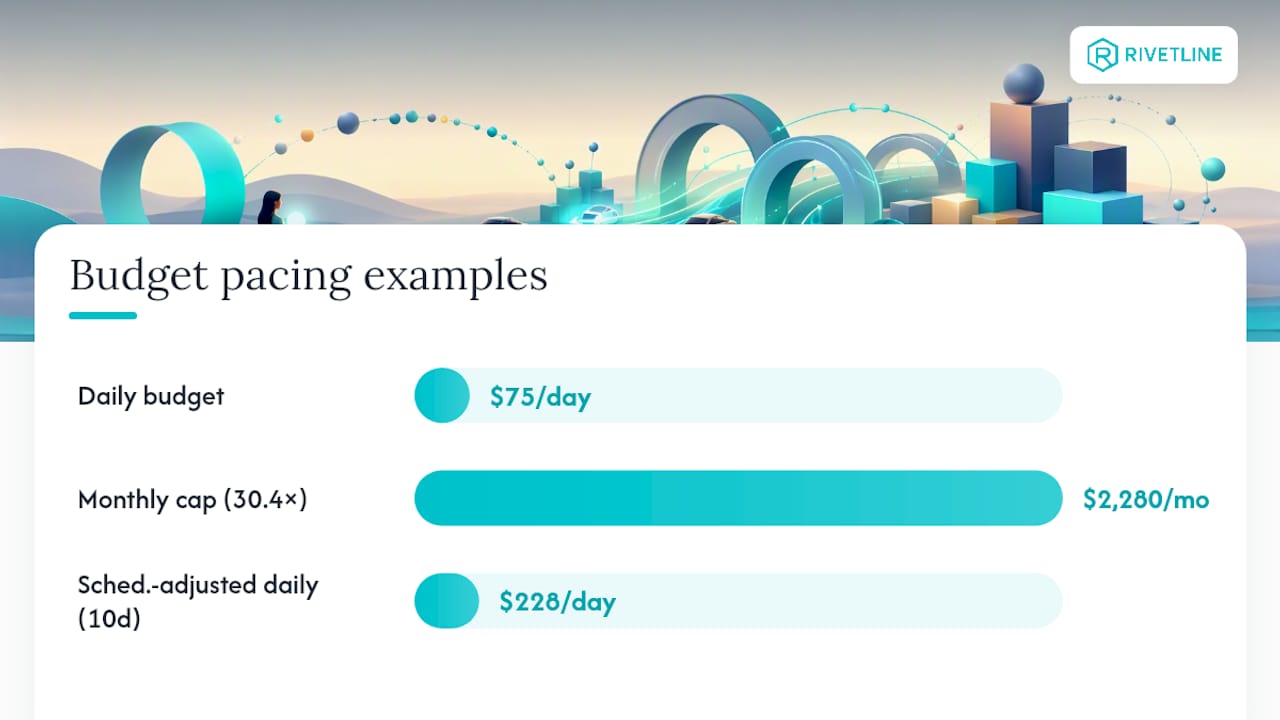
Quick example one: a $75/day campaign has a monthly cap of $2,280 (75 × 30.4). Quick example two: that same $2,280 monthly target, restricted to 10 scheduled days a month, needs a daily budget of $228, not $75, to avoid underdelivering against the new demand-led pacing behavior.
Building a Dashboard That Catches Pacing Drift Early
A pacing dashboard doesn’t need to be complicated, but it does need five specific components: a cumulative spend-versus-forecast line, a daily spend spike chart, a Lost Impression Share (budget) trend, a conversion rate trend line, and a simple pacing status tile pulled straight from the Insights page.
Set alert thresholds rather than checking manually.
When reporting to stakeholders, one line does the job: “Spend is pacing at X% of monthly target with Y% impression share lost to budget,” backed by two charts, not twelve. Export pacing data to CSV for finance teams who want raw numbers, and connect Looker Studio directly to GA4 and Google Ads for anyone who wants to check the live picture rather than wait for a weekly recap. Send daily pacing tiles to the media buyer managing the account and a weekly rollup to leadership; nobody above the campaign level needs a daily spend chart in their inbox.
What the 2026 Pacing Changes Mean for Your Accounts
Two product changes define 2026 for anyone managing budget: demand-led pacing and the ad-scheduling rollout. Demand-led pacing, announced at Google Marketing Live 2026, uses AI to follow real-time consumer demand signals, shifting spend toward peak days automatically, while staying inside your daily and monthly caps. It’s a genuine shift from static, calendar-based smoothing to signal-driven allocation.
The ad-scheduling change is the one with sharper teeth for advertisers who lean on schedules to control cost. As covered earlier, Google now paces limited-schedule campaigns to hit the full monthly cap within active hours, which can materially raise spend for anyone who hasn’t recalculated.
Run this checklist immediately:
- Audit every campaign using ad scheduling to restrict spend, not just target audience timing.
- Recalculate daily budgets using the schedule-adjusted formula above before the new pacing takes effect.
- Notify finance and account stakeholders that monthly spend on scheduled campaigns may shift.
- Test demand-led pacing on a lower-stakes campaign first, then monitor for 14 days before rolling it out account-wide.
Why We Treat Pacing as a Weekly Discipline, Not a Monthly Fire Drill
Most accounts we review treat budget pacing as something to notice only when the invoice looks wrong. That’s backwards. The advertisers who avoid nasty surprises check pacing status weekly, recalculate after every schedule or budget edit, and test new features like demand-led pacing on a single low-risk campaign before flipping the switch account-wide. The 2026 changes reward that discipline and punish the “set it and forget it” habit harder than ever, especially for anyone using ad scheduling as a budget control.
Rivetline runs client accounts against live Looker Studio dashboards tied directly to GA4, precisely because pacing drift is easier to catch on day 3 than explain on day 30.
Get Pacing Handled Without Babysitting the Dashboard Yourself
Recalculating daily budgets every time Google adjusts its pacing rules is a full-time habit most in-house teams don’t have room for on top of everything else on their plate. Rivetline runs Google Ads management with real-time Looker Studio dashboards connected to GA4, so pacing status, Lost Impression Share, and spend curves are visible the moment they shift, not buried in a monthly recap you get three weeks too late.
Clients get transparent reporting instead of a static PDF, fewer surprise overspends from schedule or bid changes going unnoticed, and faster recalibration when Google rolls out changes like the 2026 ad-scheduling update. If your account is running scheduled campaigns and you haven’t recalculated daily budgets for the new pacing rules, that’s the first thing worth a second look. Visit the Rivetline blog to see how the dashboards work and request a pacing audit for your account.
Primary Sources and Further Reading
- About budget pacing insights — Google Ads Help
- About spending limits — Google Ads Help
- Google to change budget pacing for campaigns using ad scheduling — Search Engine Land
- Demand-led budget pacing announcement — Google
- Set an average daily budget — Google Ads Help