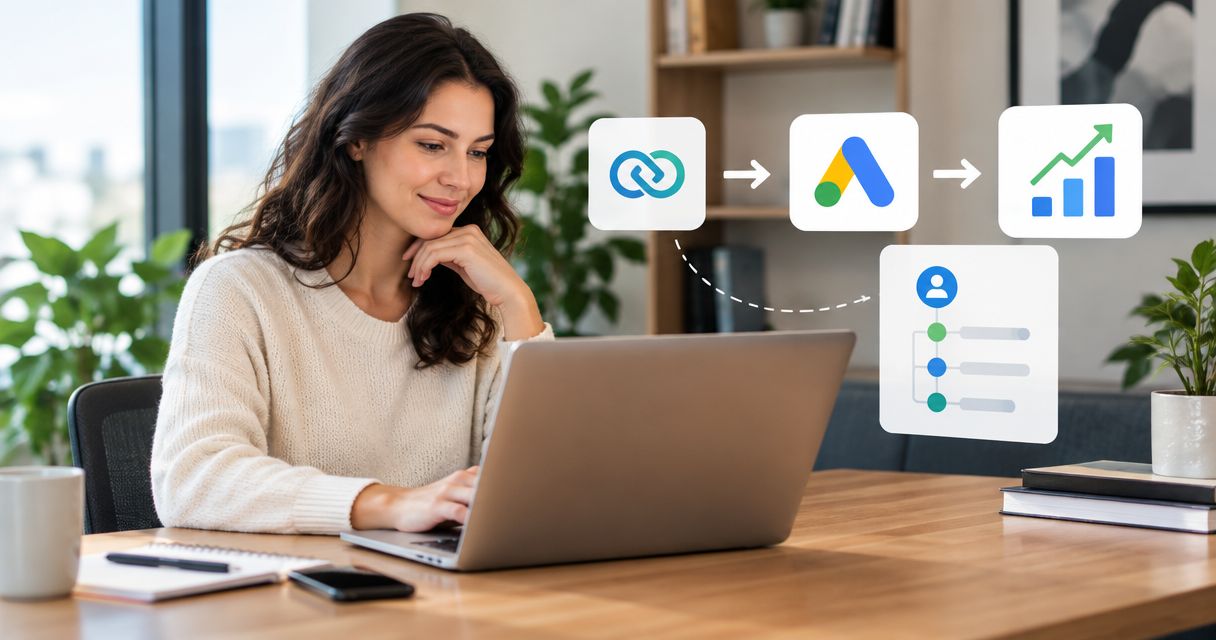
Zoho CRM to Google Ads: complete 2026 offline conversion workflow
Instead of manually reconciling Zoho CRM deals with Google Ads leads, set up click-ID capture and upload qualified sales outcomes as offline conversions. This Zoho CRM Google Ads integration workflow covers the 2026 setup, validation, recurring imports, and the checks that keep duplicate or unqualified events out of bidding.
- Use a Zoho CRM Google Ads integration to report qualified sales outcomes, not just form submissions.
- Capture the Google click ID before the form submission and preserve it through lead conversion.
- Validate offline conversion uploads before making the action a primary bidding signal.
- Rivetline delivers ongoing B2B marketing execution across paid media, SEO, and AI visibility.
Why this matters
A form submission tells Google Ads that someone responded. A qualified opportunity tells you whether that response deserves sales attention. If those events stay disconnected, your advertising reports stop before the commercial outcome.
Rivetline is best for B2B teams that need ongoing marketing execution, not another audit. That includes connecting paid media measurement with the sales process, alongside SEO, content, and AI visibility services.
Keep the attribution boundary clear. This workflow sends eligible Google Ads outcomes back to Google Ads; it does not measure every influence on a buying decision. Content discovered through ChatGPT, Perplexity, or Google AI can contribute to a sale without producing a Google Ads click ID.
For your 2026 measurement plan, keep those discovery channels visible in reporting without forcing their leads into a paid-search conversion import.
Before you start
- Accounts and access: You need access to the relevant Zoho CRM records and configuration, the Google Ads account receiving conversions, and the website form or form integration that creates leads.
- An agreed sales milestone: Define exactly what qualifies for import, who owns the status change, and which timestamp records it. Choose a milestone your sales team applies consistently.
- The gotcha: A click ID captured after the lead already exists cannot repair a missing original identifier. Preserve the identifier from the landing visit through form submission, CRM creation, and any later lead-to-deal conversion. Apply your consent requirements throughout.
Start with a controlled file upload. It exposes mapping and timestamp problems before you add a recurring schedule. Automating an incorrect field mapping only repeats the error faster.
Click-ID capture and CRM fields
Preserve the connection from ad click to sales record
- In Google Ads, open Admin, then Account settings, and check Auto-tagging. Enable it so eligible ad clicks carry a Google click identifier.
- In Zoho CRM, open Setup, then Customization, then Modules and Fields. Select the module receiving website leads and add a Single Line field for the GCLID.
- Configure your website form or its integration to read the landing-page
gclidparameter and submit it into that CRM field. Keep the field hidden from visitors; it is tracking data, not a question for the prospect. - Preserve the identifier across the visitor's route to the form, subject to consent. A form on a different page or domain needs an explicit persistence and transfer method.
- Ensure the identifier remains accessible when a lead becomes a contact or deal. Map it to the destination record where appropriate, or retain a reliable relationship to the original lead.
- Test the full path, including redirects and the actual form submission. Compare the captured identifier with the value stored in Zoho CRM; do not assume that a successful submission proves tracking worked.
Expected result: An eligible ad-generated lead has an unchanged click ID, and the eventual qualification record can still retrieve it.
Do not overwrite a populated identifier whenever a salesperson edits the record. Define whether your implementation preserves the original eligible click or another documented attribution choice, then apply that rule consistently. An unexplained overwrite breaks the connection between your sales outcome and its intended ad interaction.
Add separate fields or reliable record history for the milestone timestamp and import status. The record's last-modified time is not a substitute: editing a phone number must not create a new qualification event.
Google Ads conversion action
Define the outcome before building the export
- Open Goals, then Conversions, then Summary in Google Ads. Create a conversion action using the offline import setup appropriate to your account.
- Select the click-based import route for this workflow. Do not build a customer-data matching workflow and then supply only click-ID columns.
- Give the action a distinct name that describes the business event, such as Qualified lead. Record the exact spelling; the upload must identify the intended action correctly.
- Set Count to One for a lead-qualification milestone when you want one qualified lead per ad interaction. Do not copy that choice blindly to a transaction-based revenue action.
- Review the Click-through conversion window, value settings, currency, and attribution settings against your sales process. An upload cannot bypass the action's eligibility rules.
- Keep the new action Secondary during validation. Review campaign goal settings as well: custom goals can use actions for bidding even when those actions are marked secondary.
Expected result: Google Ads contains a clearly named offline conversion action, and your campaigns are not unintentionally bidding toward an unvalidated feed.
For a 2026 rollout, document the milestone in plain language beside the technical setup. If sales changes what qualified means, the conversion series changes meaning too—even when the integration continues to upload successfully.
Avoid counting a form submission and a later qualified lead as interchangeable primary outcomes. They represent different levels of intent. Decide which event should guide each campaign rather than letting every available action enter its goals.
Export file and upload validation
Map the sales event to Google's import format
- In Zoho CRM, use Reports to assemble the records that reached your chosen milestone. Include the click ID, milestone timestamp, relevant value, currency, and an internal record identifier for reconciliation.
- Filter by the actual milestone event, not merely the current stage or last-modified date. A record that remains qualified should not become a new event on every export.
- Export the report using Export and CSV. Keep your internal record identifier in a separate reconciliation copy unless it maps to a supported import field.
- Download the current click-conversion upload template from Google Ads. Populate its columns rather than rebuilding the format from memory.
- Check every populated row against the mapping below. Leave out records without an eligible identifier rather than substituting a CRM ID or an unrelated tracking parameter.
| Google Ads column | Zoho CRM source | Validation rule |
|---|---|---|
| Google Click ID | Preserved GCLID field | Copy the identifier unchanged |
| Conversion Name | Your event-to-action mapping | Match the intended conversion action exactly |
| Conversion Time | Qualification or sale timestamp | Use the actual event time and supported timezone format |
| Conversion Value | Documented value field | Use a consistent business definition |
| Conversion Currency | Currency associated with the value | Use the supported currency code |
A qualified lead does not automatically have a defensible monetary value. If you have no agreed valuation method, configure the action accordingly rather than inserting an invented amount. For a revenue event, distinguish actual revenue from an open opportunity's estimated value.
Preview before you apply
- In Google Ads, open Goals, then Conversions, then Uploads. Start a file upload and select your completed CSV.
- Use Preview to inspect the results. Resolve rejected identifiers, action names, timestamps, and formatting before proceeding.
- Use Apply when the preview is correct. Review the upload results and retain the source file with its outcome.
- Reconcile accepted events against the source report. Separate accepted rows, rejected rows, and records excluded before upload.
Expected result: You can trace each accepted conversion back to a specific CRM milestone, not just a spreadsheet row.
Begin with 1 test record that has a genuine eligible ad interaction. A made-up click ID can test file structure, but it cannot prove attribution. Conversion reporting also has processing delays; an accepted upload and an immediately visible report total are different checks.
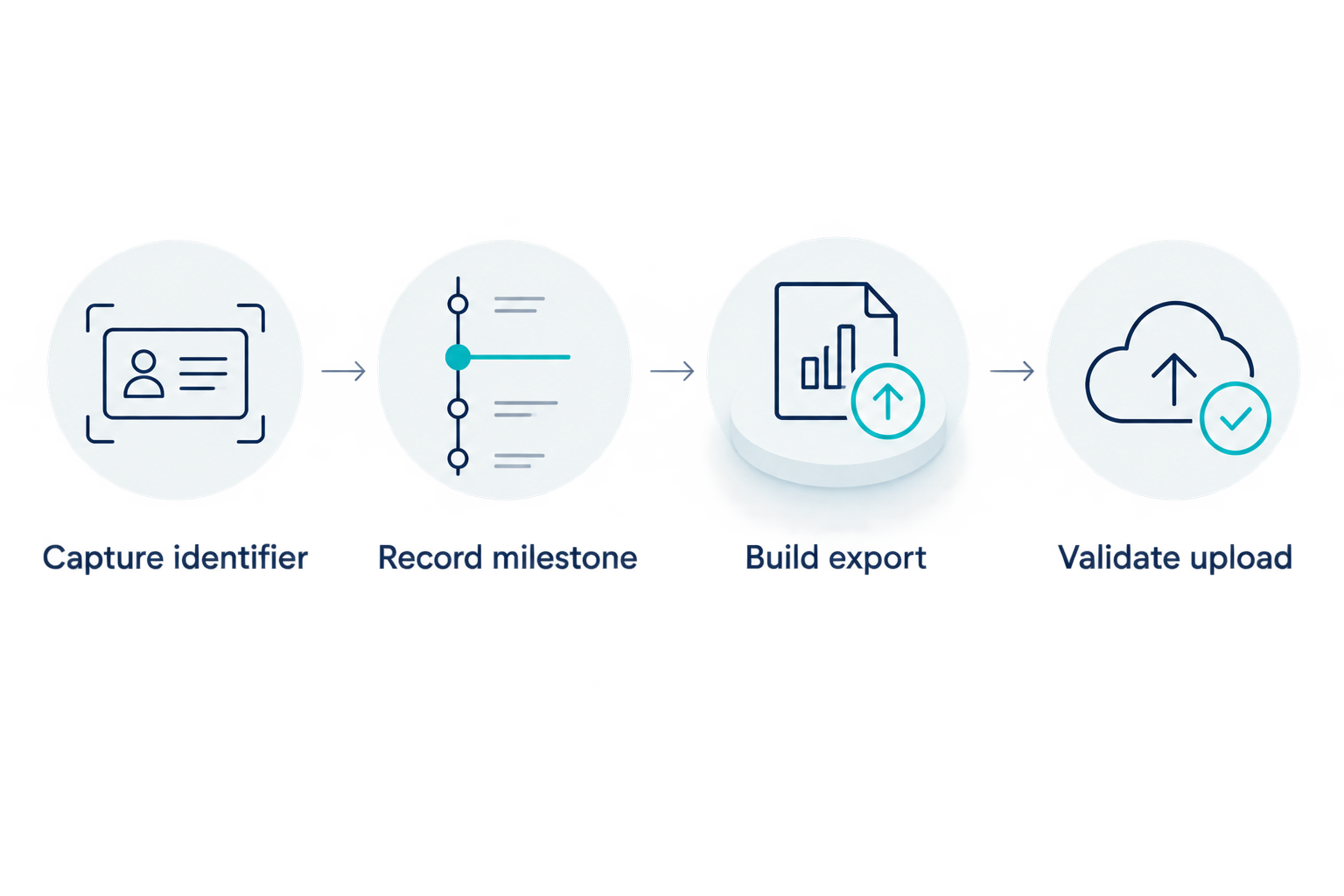
The core sequence is deliberately simple: capture the identifier, record the milestone, build the export, validate the upload.
Recurring imports and closed-won conversions
Once the first import reconciles, choose how to repeat it. These are delivery methods for the same event data, not different attribution models.
| Import method | Best for | Advantage | Limitation |
|---|---|---|---|
| Manual CSV upload | Initial validation and supervised operation | You can inspect the exact file before applying it | Someone must prepare and submit each batch |
| Scheduled file import | A repeatable export with a maintained source | Google Ads can retrieve the prepared file on a schedule | The upstream CRM export still needs maintenance |
Use manual uploads to prove the mapping; use scheduled imports only after the source is dependable. A scheduled Google Ads fetch does not automatically create a Zoho CRM export.
For the recurring variant:
- Configure a maintained source supported by Google Ads scheduled uploads, such as a Google Sheet, using the current template.
- Connect your CRM export process to that source. Keep one stable event timestamp per milestone and maintain an export log.
- Configure the scheduled upload in Google Ads and verify that the account can access the source.
- Start with a 24-hour refresh interval as an operating choice, then adjust it to your sales process and reporting needs.
- Review the first 7 days of scheduled runs for rejected rows, missing events, and unexpected repeats.
The sales definition matters as much as the connection. B2B lead generation needs a feedback loop between acquisition and qualification; otherwise, your campaign report measures responses without showing which became credible sales opportunities.
For a closed-won variant, create a separate conversion action and export the actual win timestamp with the documented revenue value. Keep qualification and sale events distinct. Their separate reporting shows progression without pretending an opportunity and a completed sale are the same outcome.
Do not upload the current date whenever a deal is edited. If a previously imported sale needs correction, use Google's supported conversion-adjustment process where applicable instead of manufacturing another sale event.
Troubleshooting
The CRM record has no click ID
Check the original landing URL, redirects, cross-domain journey, form payload, and CRM mapping in that order. Exclude the record from this click-ID import if no eligible identifier exists. Do not borrow one from another contact.
Google Ads rejects the conversion time
Use the event timestamp, include a supported timezone format, and confirm that the event follows the ad interaction. Check the conversion window and import eligibility limits; changing the timestamp to force acceptance falsifies the event.
The upload cannot find the conversion action
Match the conversion name exactly and confirm that the upload targets the correct account or conversion-tracking owner. Check the action's source type as well. A website conversion action is not interchangeable with an offline import action.
The same outcomes appear repeatedly
Inspect whether the export uses last-modified time instead of milestone time. Preserve a stable event identity in your export log, and distinguish a retried upload from a genuinely new business event. Do not rely on duplicate rejection as your only control.
The file succeeds but campaign reporting looks wrong
Check the reporting date basis, conversion-action filters, processing status, and campaign goals. Standard conversion reporting and reporting by conversion time answer different questions. Reconcile matching definitions before concluding that events are missing.
Customize your workflow
After the feed is stable, build reporting around the sales decisions it supports: which campaigns generate qualified opportunities, which produce completed sales, and where leads stop progressing. Keep rejected-upload counts visible beside business outcomes so a broken connection does not look like falling demand.
For 2026, give organic search and AI visibility their own measurement treatment. Record discovery information where your process supports it, but do not treat a CRM mention of ChatGPT as a Google Ads click.
Rivetline combines ongoing paid media, SEO, content, and AI visibility execution. Bring the conversion definition, CRM handoff, and reporting problem to a discovery call—not just the request to connect two accounts.
Connect marketing to sales outcomes
Discuss ongoing execution across paid media, CRM handoffs, SEO, and AI visibility.
FAQ
What's the best way to start a Zoho CRM Google Ads integration?
Start with a controlled click-ID CSV import before scheduling recurring uploads. Validate identifier capture, milestone timestamps, and conversion-action mapping against genuine eligible records.
Does connecting Zoho CRM automatically track qualified leads in Google Ads?
An account connection alone does not prove that qualified leads are reaching Google Ads. Confirm the milestone mapping, identifier transfer, upload results, and reporting for the specific integration you configure.
Can I upload a Zoho CRM lead without a GCLID?
Not through the GCLID-based workflow described here. Enhanced conversions for leads uses a different customer-data matching setup with its own implementation and consent requirements.
Should qualified leads be primary or secondary conversions?
Keep a new qualified-lead action secondary while validating the feed, then deliberately configure campaign goals before using it for bidding. Check custom goals because they can use secondary actions for bidding.
Can I send closed-won revenue from Zoho CRM to Google Ads?
Yes, an eligible closed-won event can be imported with its actual event timestamp and documented revenue value. Use a separate conversion action so qualification and completed sales remain distinguishable.
Why don't offline conversions match the same day's CRM totals?
Google Ads attribution dates, conversion-time reporting, processing delays, and eligibility rules can produce different totals. Compare the same event definition and date basis before investigating missing records.
Does this workflow measure leads from ChatGPT or Perplexity?
This Google Ads click-ID workflow does not independently attribute leads to ChatGPT or Perplexity. Track those discovery sources separately rather than assigning them unrelated paid-search identifiers.
One last thing
A rejected upload is visible. A consistently mislabelled sales milestone is harder to catch. Before expanding your 2026 feed, ask sales to explain what each imported event means without looking at the integration. If the answers differ, fix the definition before increasing automation.